
Uploads Manager
- # Introduction
- # Setup & Configuration
- # Uploading & Managing
- # File URLs & Privacy
- # Using uploads in code
- # Moving to another server
Introduction
The Uploads Manager (/admin/uploads) uploads and manages files, much like the WordPress Media library. Files are uploaded with DropzoneJS, can be public or private, and can be renamed with SEO friendly names. Image, File and Files fields pick their files from here.
Setup & Configuration
Uploaded files are stored outside the public folder, in two folders that must be writable by the web server:
storage/uploads- the uploaded filesstorage/thumbnails- generated thumbnails
storage/uploads comes with LaraAdmin, but storage/thumbnails doesn't, and thumbnails fail until it exists. Create it once:
mkdir -p storage/thumbnailsFiles are served by LaraAdmin (/files/...), which checks whether the visitor may see them. See File URLs & Privacy.
Three settings in config/laraadmin.php control uploads:
'uploads' => [
    'private_uploads' => false,
    'default_public' => false,
    'allow_filename_change' => true
],| Setting | Effect |
|---|---|
private_uploads | true: all files are private, and each user sees only their own uploads (the Super Admin sees all). The Public option is hidden. Use it for a CRM or an intranet. false: users choose per file. |
default_public | Whether the Public option is ticked by default when uploading. |
allow_filename_change | Allow renaming files after upload, for SEO friendly names. |
Uploading & Managing
Click Add New, then drop files on the area or click it to choose them. Uploaded files appear in the grid below.
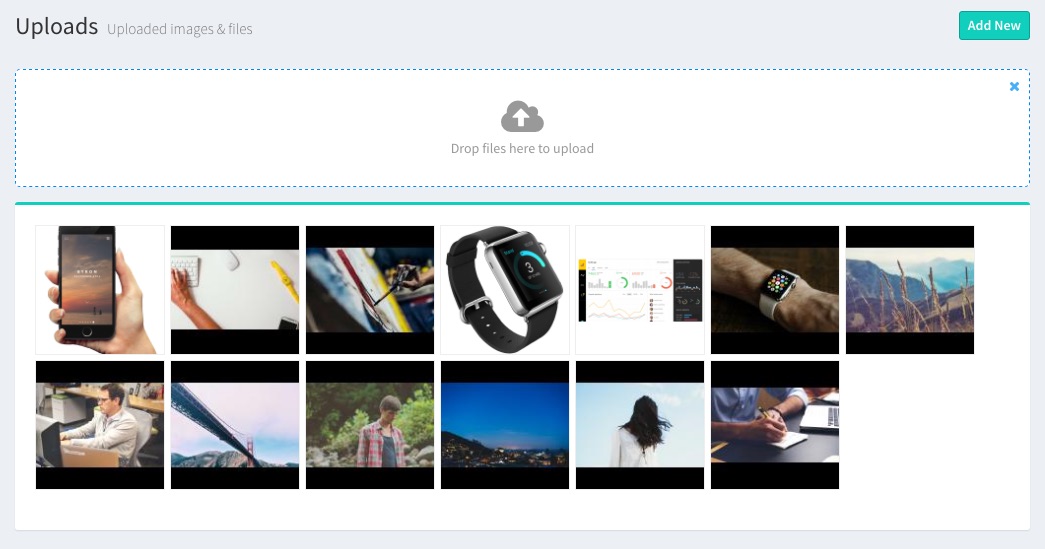
Files are saved in storage/uploads with the upload time in front of the name, e.g. 2026-10-24-210112-apple_watch.png, so files with the same name don't overwrite each other.
Click a file to see its details: File name, URL, Label (used as the image's alt and title) and Public.
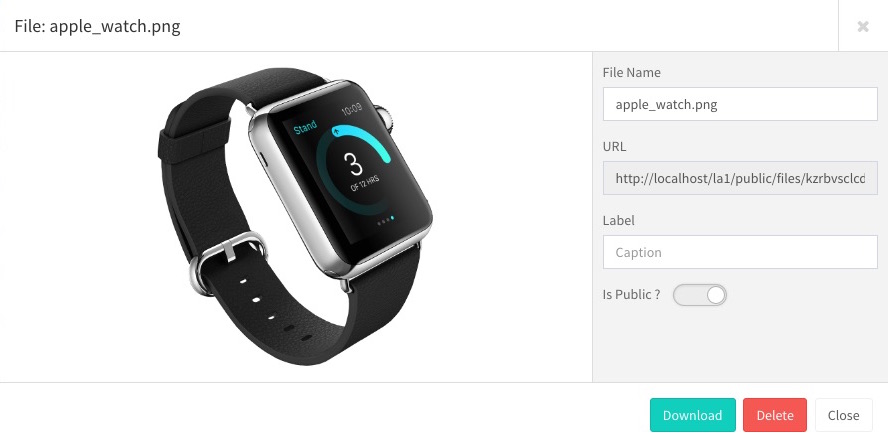
Renaming a file (when allow_filename_change is on and the role may write the Uploads name field) changes its URL and renames the stored file. The new name can't contain a folder: since 1.13.1 the file always stays in storage/uploads.
File URLs & Privacy
/files/kzrbvsclcdexfn13tbaj/apple_watch.png
/files/kzrbvsclcdexfn13tbaj/apple_watch.png?s=130
/files/kzrbvsclcdexfn13tbaj/apple_watch.png?download
kzrbvsclcdexfn13tbaj is a random hash given to each upload, so URLs can't be guessed. apple_watch.png is the file name. ?s=130 returns a 130 × 130 px thumbnail (made once and kept in storage/thumbnails); without it you get the original. ?download downloads the file instead of showing it.
- Public files are shown to anyone with the URL.
- Private files are shown only to the user who uploaded them and the Super Admin. Guests get 403.
- HTML, SVG and XML files are always downloaded, never shown in the browser, so an uploaded file can't run as a page of your site (1.13.1).
Using uploads in code
Image and File fields store the upload's id (a row of the uploads table), and Files fields a JSON list of ids. Load the upload to get its URL and details:
use App\Models\Upload;
use App\Helpers\LAHelper;

$img = Upload::find($course->banner);
$img->url()      // https://your-app.test/files/kzrbvsclcdexfn13tbaj/apple_watch.png
$img->path       // /var/www/your-app/storage/uploads/2026-10-24-210112-apple_watch.png
$img->name       // apple_watch.png
$img->caption    // Apple Watch (the label)
$img->extension  // png
$img->hash       // kzrbvsclcdexfn13tbaj
$img->public     // 1 = public, 0 = private
$img->user       // the User who uploaded it

LAHelper::img($course->banner)   // the URL, or '' if the upload doesn't exist

// Add a file that is already in storage/uploads
$upload = Upload::add('2026-10-24-210112-report.pdf', 'Annual Report', Auth::id(), false);
In a Blade view:
<img src="{{ $img->url() }}?s=300" alt="{{ $img->caption }}">A user's uploads:
foreach (Auth::user()->uploads as $upload) {
    echo $upload->name;
}
Moving to another server
The uploads table stores each file's full path. After moving the site to another folder or server, copy storage/uploads, then open /admin/update_local_upload_paths (needs edit access to Uploads) to rewrite the paths for the new location.